
Dear Clients,
Your Portfolio in Kabinata is a tool that allows you to book additional lessons with teachers of your choice.
We call these lessons 'Booked Lessons', which is a more accurate term than 'private lessons', because booked lessons are not always individual (you can add additional participants to each booked lesson, making it a shared lesson).
Our teachers announce times when they have the opportunity to conduct additional lessons. Separately, you as a student can also propose a lesson at a time of your choice, which the teacher can accept or decline.
Through 'Discussions' you can exchange messages directly with teachers and agree on all details regarding the lessons.
Booking a Time Slot
On each teacher's page you can see the announced lessons and times. They are displayed as boxes of 30 minutes each, where you select a start and end time. To book one hour (60 minutes), you need to click on 3 consecutive boxes. One astronomical hour is the minimum time you can book. If you want to book, for example, 2 hours (120 minutes), you need to click on 6 consecutive boxes.
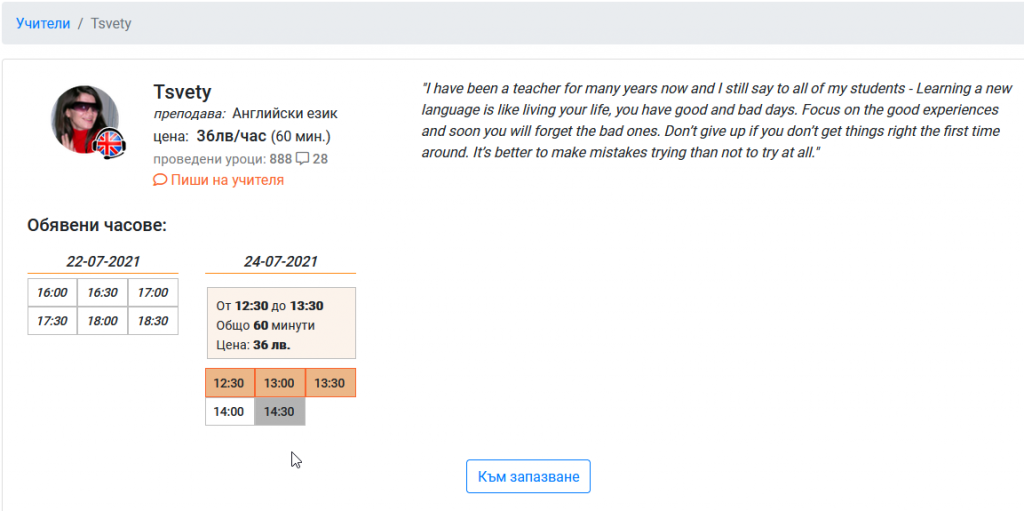
After you select the times you want to book, click on 'Book' and the time slot will be reserved and visible in the 'Booked' page.
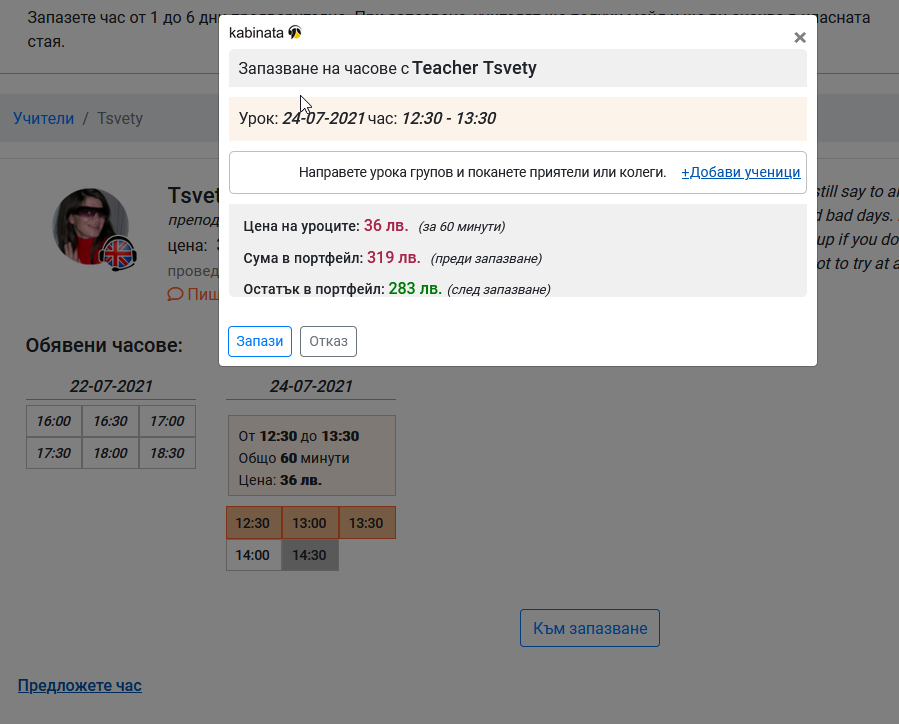
Your portfolio will be charged immediately after booking. The teacher will receive an email with information about the booked lesson and will expect you in the classroom shortly before the lesson begins.
Propose a Time Slot
You also have the option to propose a time slot at your discretion or after agreeing with the teacher. When you propose a time slot, you choose the date and time of the lesson, the teacher accepts or declines it, and the student receives an email notification. If the teacher accepts the lesson, it becomes directly booked and visible on the 'Booked' page. You can see the status of all lessons you have proposed on the 'Proposed' page.
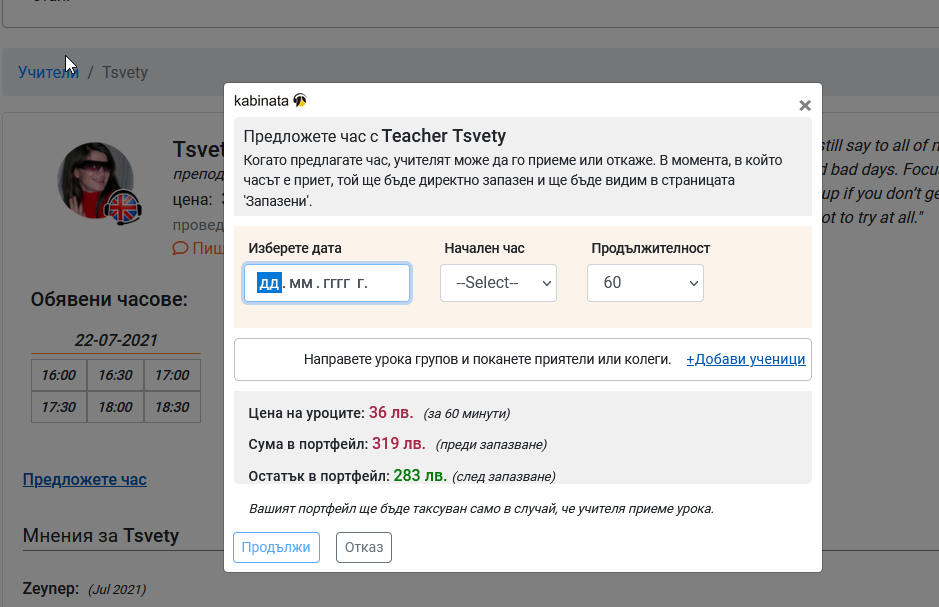
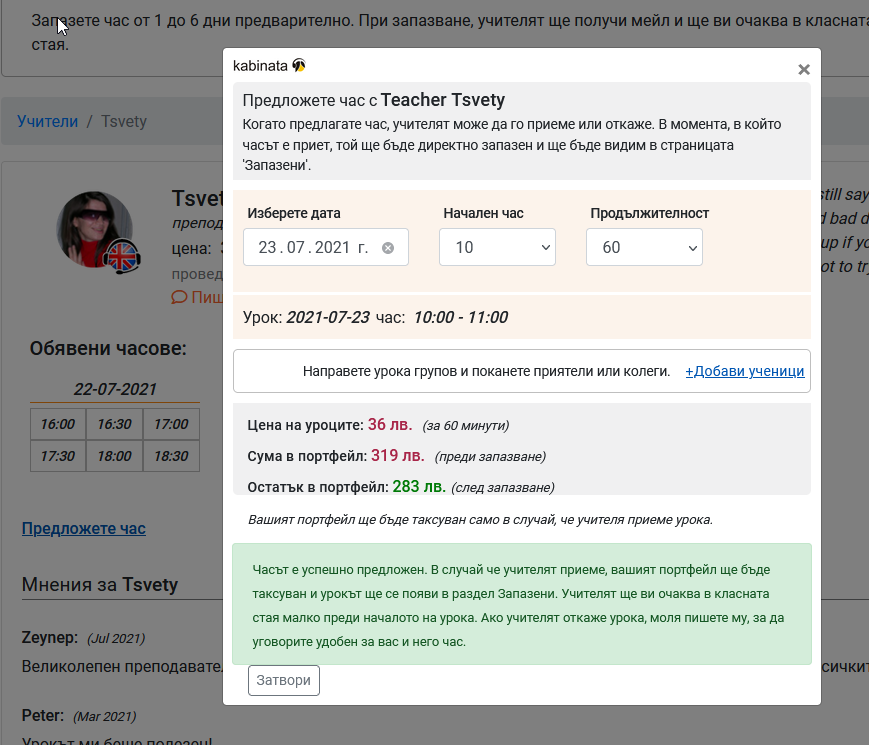
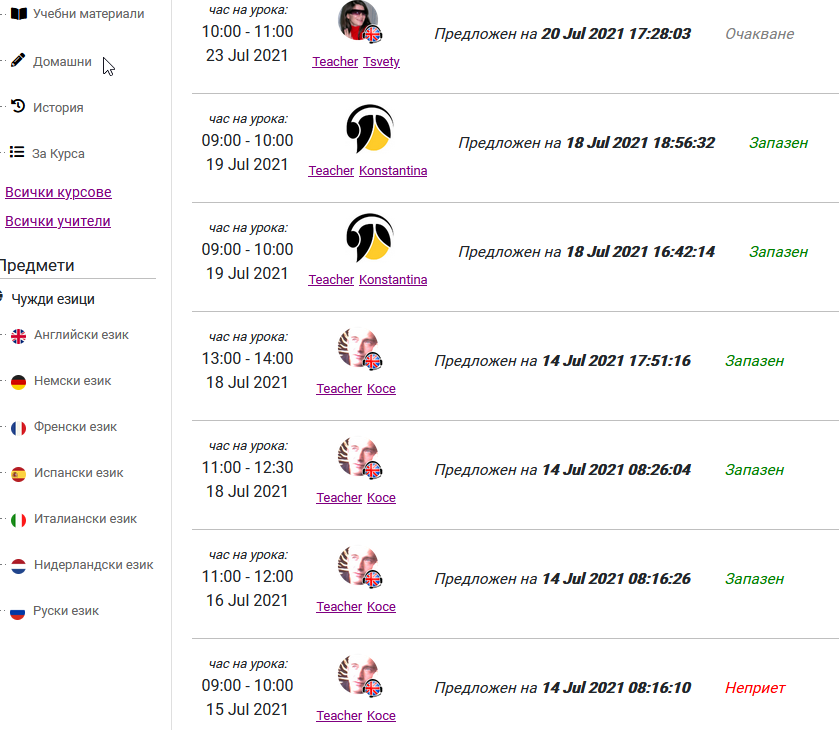
Image 5: The status of proposed lessons is visible on the 'Proposed' page. Your Portfolio will be charged only if the teacher accepts the proposed lesson.
+Share the Lesson (Adding Additional Students)
In each booked lesson you can add additional participants. This can be done in two ways – from a list of classmates and with a personal key. When booking a lesson, click on the dropdown menu and you will see a list of your classmates – select those you want to include and after booking, they will receive an email and will see the lesson in their schedule. If you don't see among the list of classmates those you want to include in the lesson, ask them to send you their personal key.
Every student has a unique personal key in their profile. To add a student, you need to have their key and paste it in the 'Add Student' field.
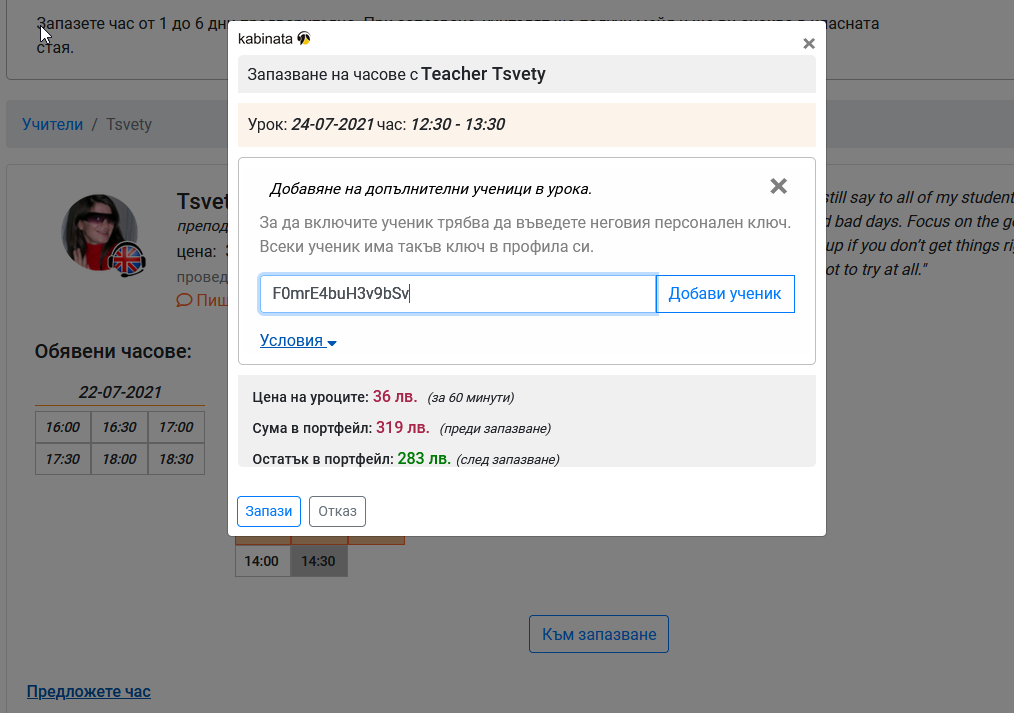
The added students will receive an email and the lesson you booked will be visible to them on the 'Booked' page.
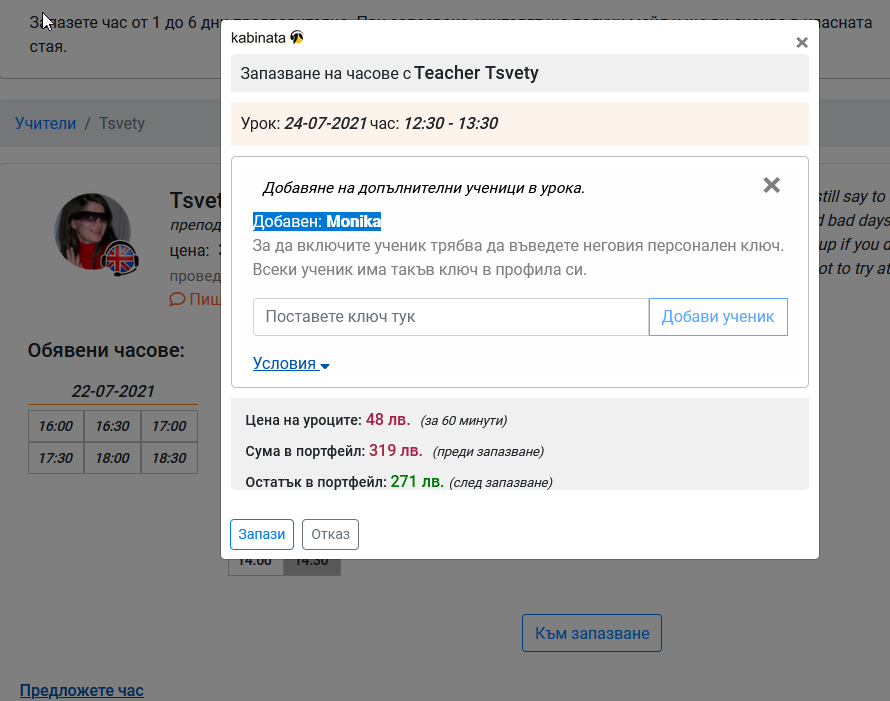
When adding additional students, only the portfolio of the student who books the lesson is charged. The price for the lesson is paid only by the student who books it, and the added students participate for free.
Use the messages in 'Discussions' to send your personal code to a friend or classmate and learn together in Booked Lessons.
Our teachers are waiting for you.